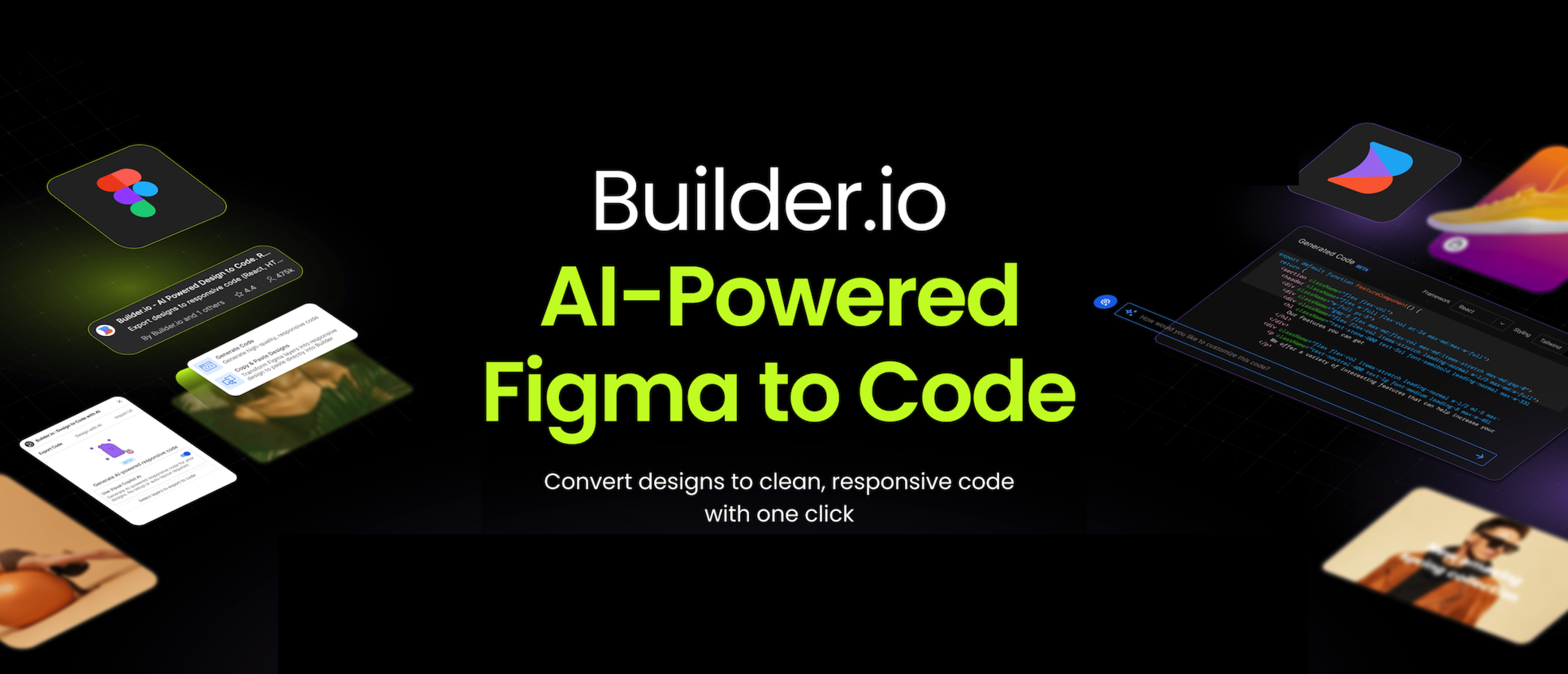
With the advancement of technology, our work is becoming increasingly simplified with the help of tool that assist in converting Figma design into code. Imagine being able to build a website or webpage with just a single click. You no longer need to spend days on end building a website.
There’s a Figma plugin that can assist you in converting designs into code with the help of AI to produce a seamless website or webpage, with Builder.io.
What is Builder.io Plugin?
Builder.io plugin is a tool that helps you import your Figma design directly into Builder while letting AI—Visual Copilot, take care of the details—no more manually rasterizing, applying auto layout, or figuring out all the responsiveness.
The AI features in the Builder plugin—Visual Copilot, take care of all the details including rasterizing images, applying auto layout, and making the design responsive in Builder.
With Visual Copilot, you can convert Figma designs into React, Vue, Svelte, Angular, Qwik, Solid, or HTML code in real-time, with one click on the Figma plugin. It uses your choice of styling library, including plain CSS code, Tailwind, Emotion, Styled Components and you can use AI to iterate the code for your preferred CSS library or JavaScript meta-framework (such as Next.js).
Use AI to generate clean, responsive code from Figma designs in real-time.
- No setup: No need to use auto layout or do anything special to your design files before you turn them into code.
- Any framework: Generate React, Next.js, Vue, Svelte, Angular, Qwik, Solid, React Native, or HTML code. Choose your preferred CSS library, whether it’s Tailwind CSS, Material UI, Emotion, Styled Components, or Styled JSX.
- Automatically responsive: Generated code is automatically responsive, even when your designs don’t use auto layout.
- Easy to read, improve, and export code: Generated code is clean code and developer-friendly so it’s easy to read, edit, update, and integrate it with your existing JavaScript and HTML code for web pages and apps.
How to use Builder.io Figma Plugin?
There are 2 options of how to generate your design to code.
1. Generate Code Feature
This feature will generate your Figma design into code. Here are the steps:
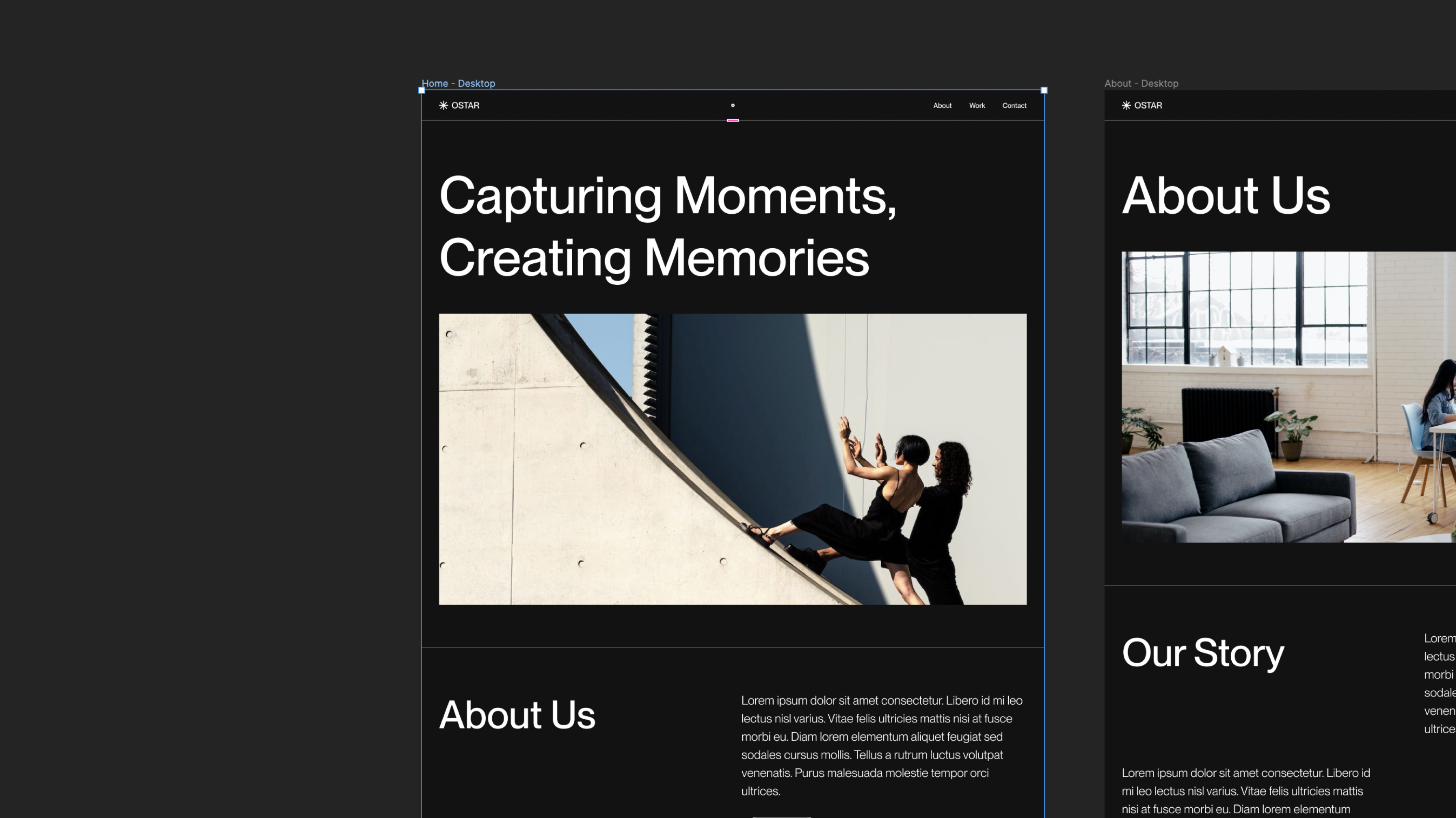
- In your Figma file, select the frame(s) you wish to import into Builder.
- In Figma, access the Builder plugin by clicking on Resources in the toolbar and navigating to the Plugins tab.
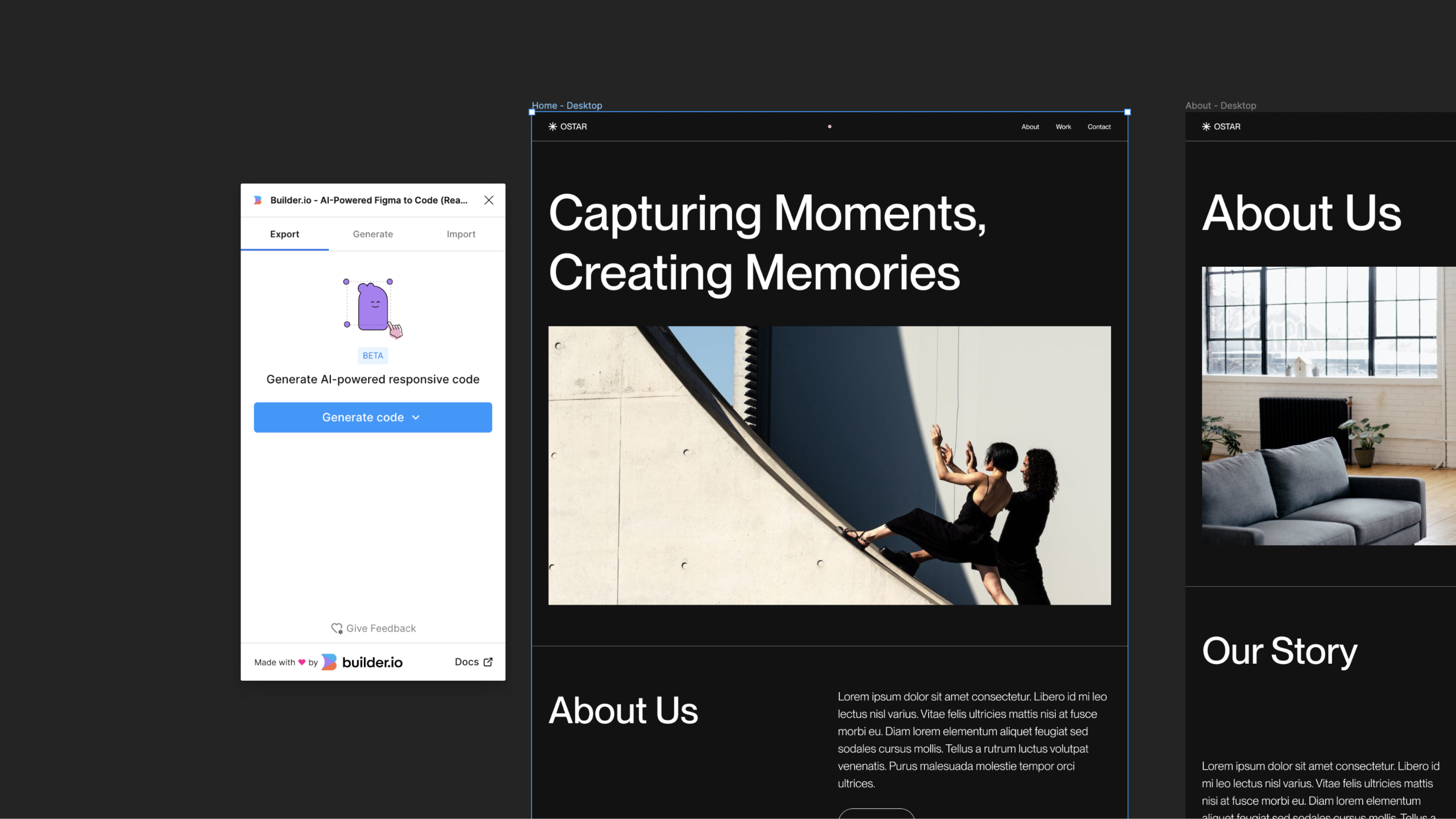
- Click the Generate Code button.

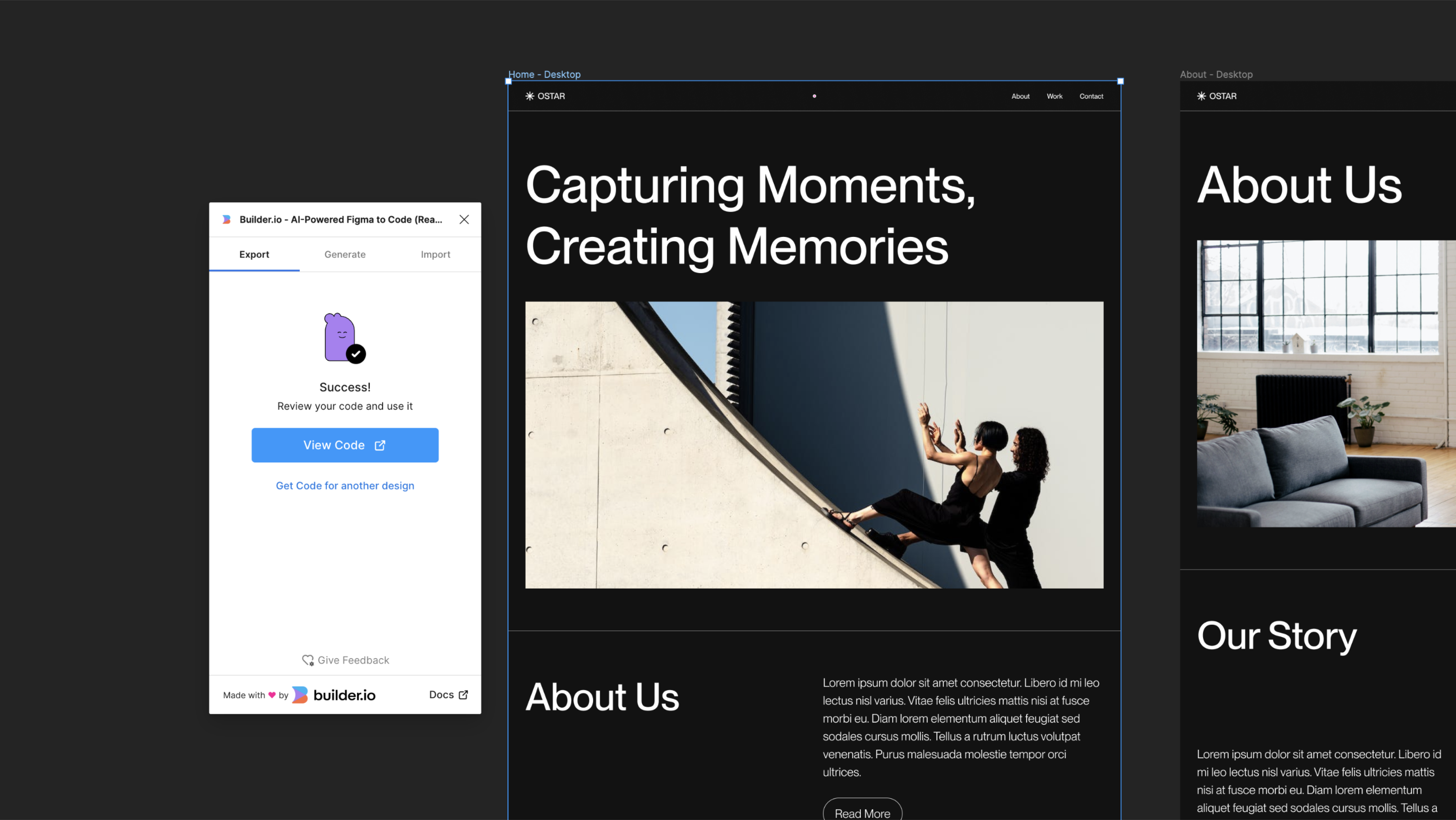
- Now, if you click on ‘view code’, it will take you to the Builder fiddle, displaying your content. You can then copy and paste this content into another Builder document or save it as a template.
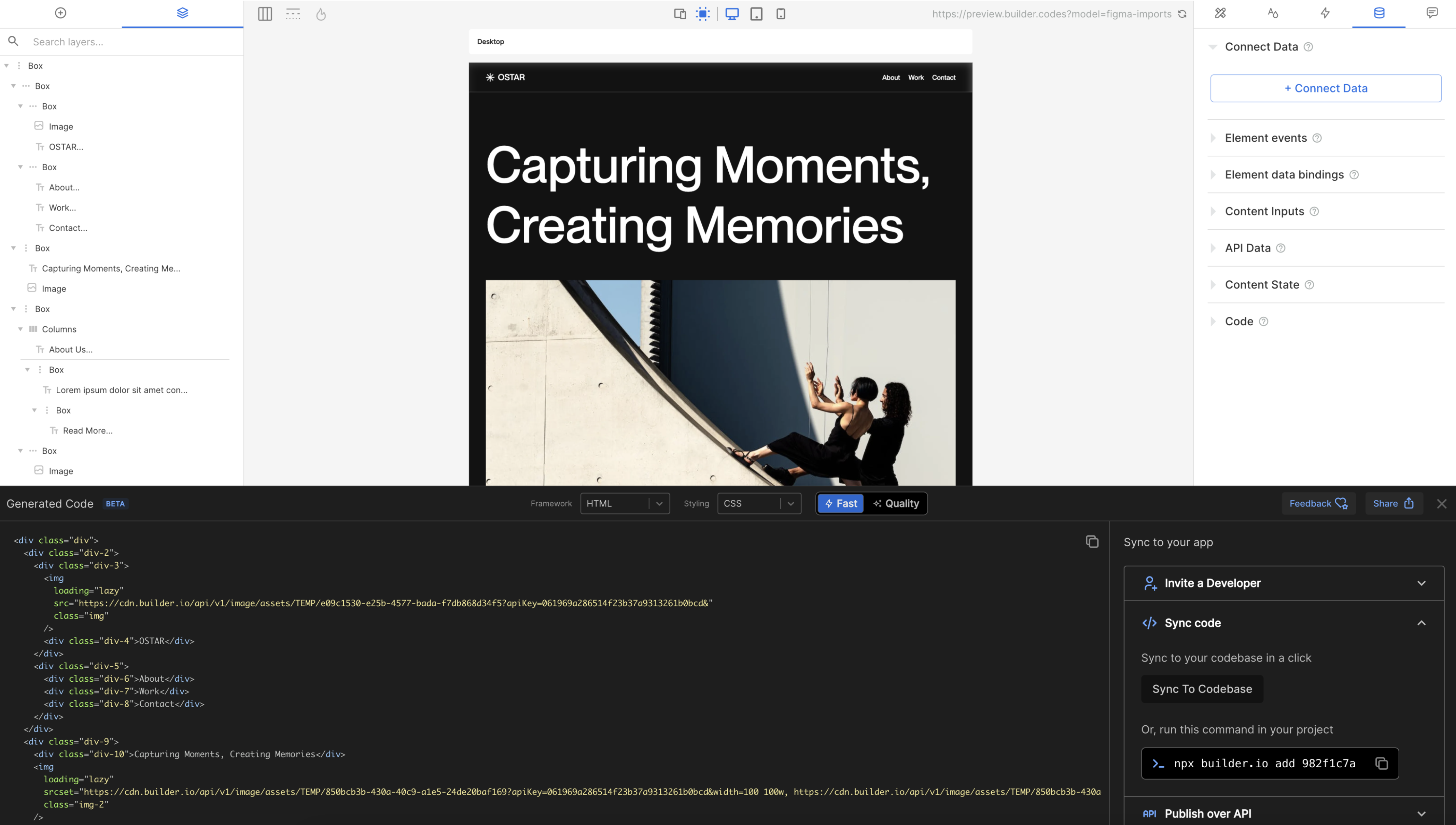
Though no preparation is mandatory for your Figma file before using the plugin, you have the option to apply Auto Layout as guidance for the AI, particularly if your design could benefit from additional assistance.
2. Copy & Paste Design
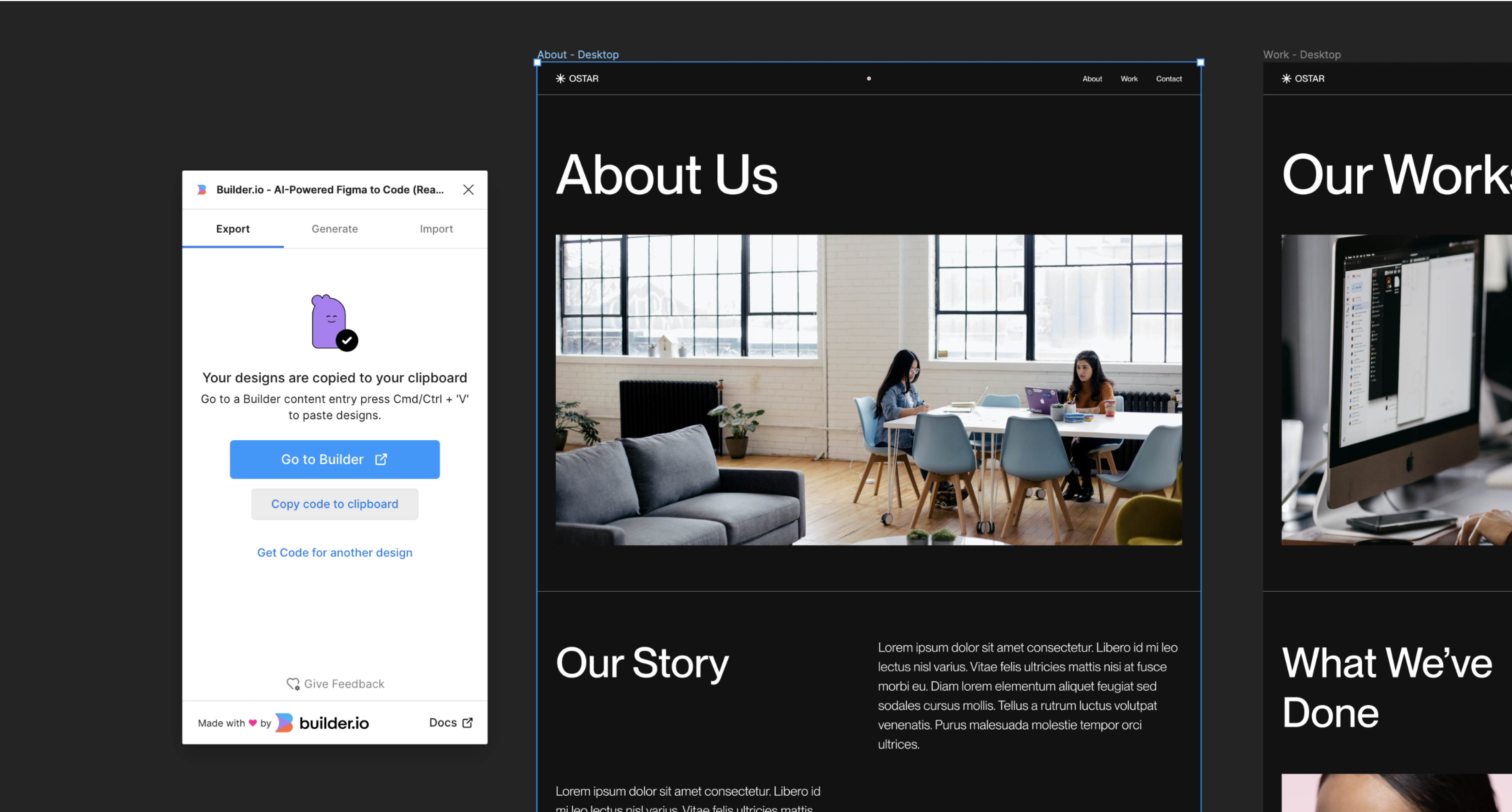
Effortlessly copy and paste your Figma designs into Builder using the Builder Figma plugin. This workflow is ideal for updating an existing Page or Section, like making design updates to a hero.
- Select the layer(s) in Figma.
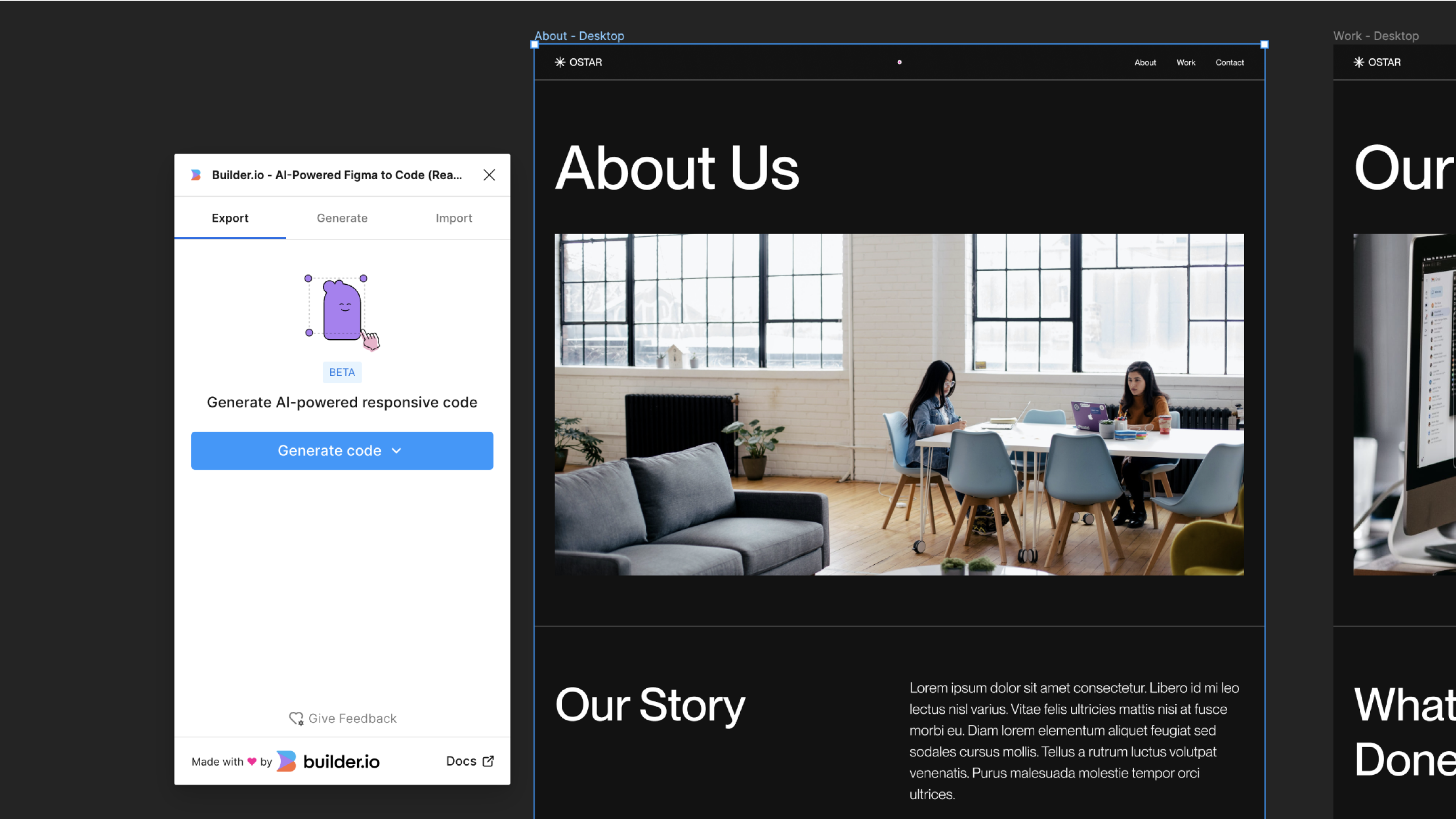
- Open the Builder Figma plugin and expand the options in the Generate Code button.
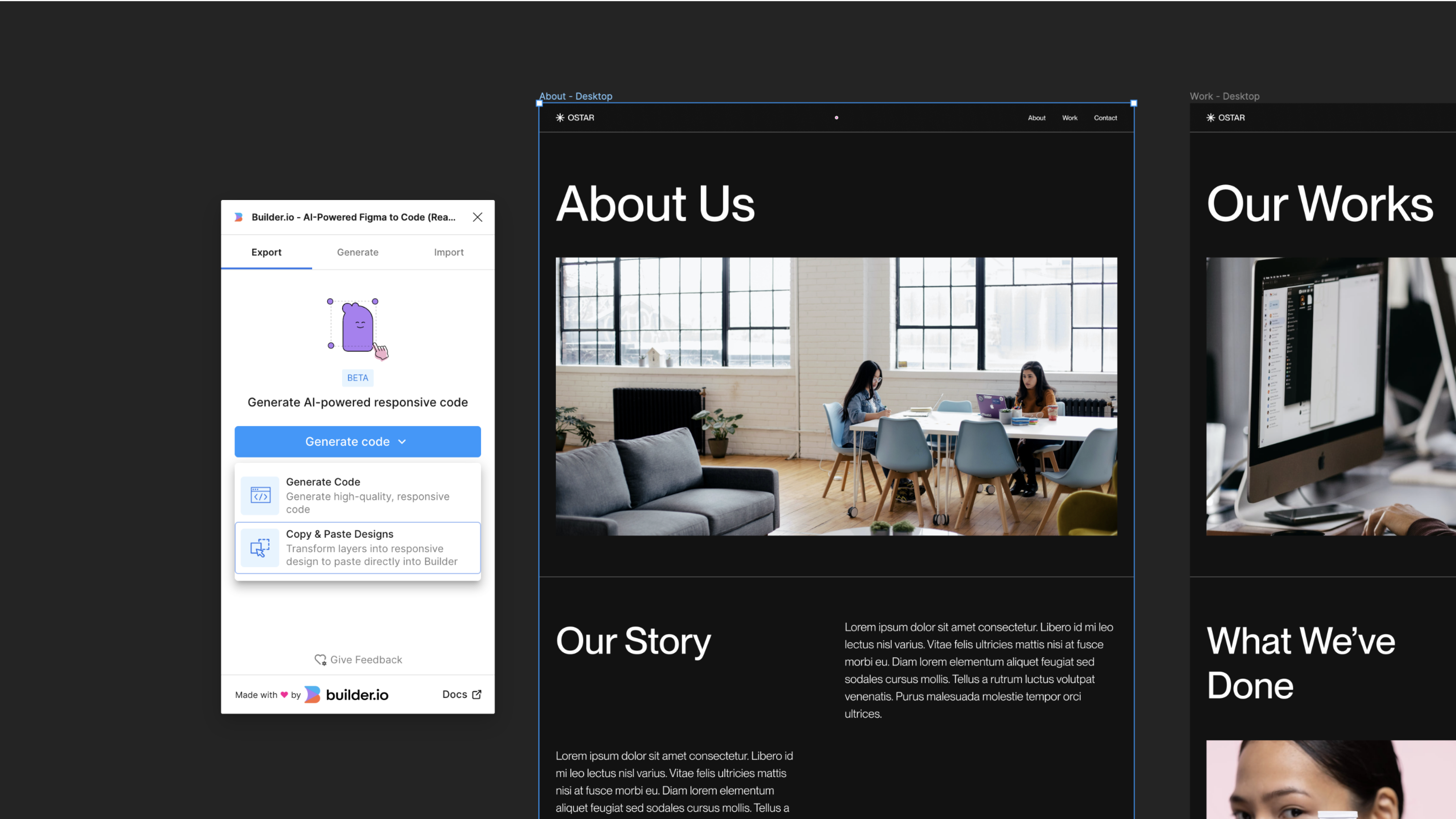
- Choose Copy & Paste Designs.
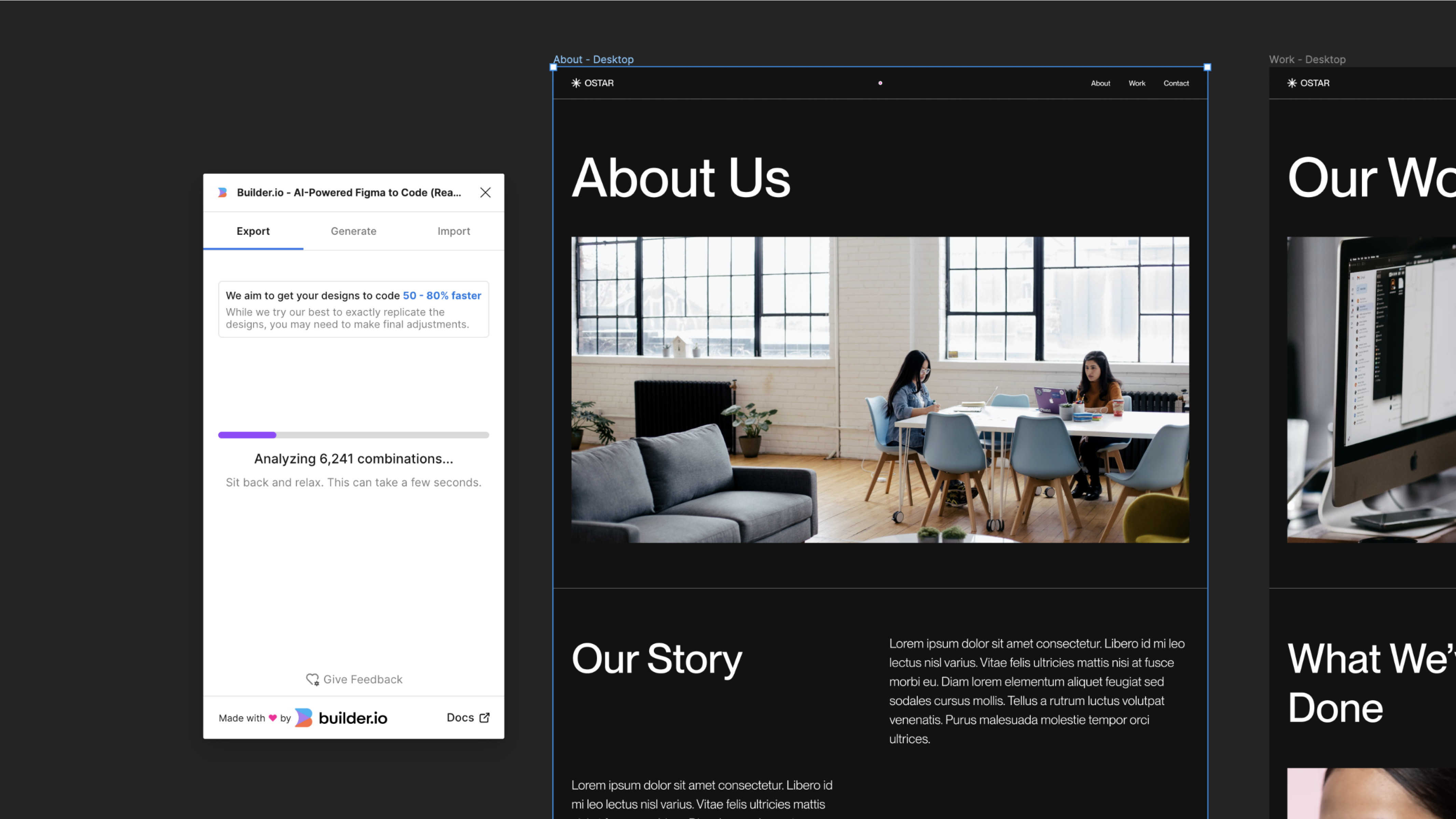
- Once the copy process is complete, navigate to the Builder Visual Editor and paste using Cmd/Ctrl + v.
Conclusion
Builder.io is a tool that you can use to save time while building websites or webpages. With AI-powered features, you don’t need to do additional tasks like adding auto layout in Figma or adjusting responsiveness on the website. Try it now to see how powerful Builder.io is!